

Overview
Qaptly Browser Pilot is a Chrome extension that captures user operations and analyzes them to create SQA (Software Quality Assurance) test cases. It streams data in real-time via WebSocket to the Qaptly Desktop application for test automation purposes.System Requirements
- Chrome 88 or higher (Manifest V3 support)
- Chromium-based browsers: Chrome, Edge, Brave
- Operating Systems: Windows, macOS, Linux
- At least 5MB available disk space
Installation Steps
Step 1: Obtain Extension Package
Obtain the Qaptly Browser Pilot extension package (.zip file) from:- Your Qaptly Desktop application, or
- Your system administrator
qaptly-chrome-ext_x.x.x-xxxxxxxxx.zip
Step 2: Enable Developer Mode
Before installing the extension, you must enable Developer Mode in Chrome:- Open Chrome browser
- Navigate to chrome://extensions in the address bar
- Toggle the Developer mode switch in the top-right corner
Step 3: Extract Extension Files
- Locate the downloaded
.zipfile - Extract the contents to a folder
- Remember the folder location - you’ll need it in the next step
Step 4: Load Unpacked Extension
- In the Chrome extensions page (chrome://extensions)
- Click the Load unpacked button
- Select the folder you extracted in Step 3
- Click Select to confirm
Step 5: Verify Installation
After successful installation, you should see:- Qaptly Browser Pilot listed in your extensions
- Extension status showing as “Enabled”
- Extension version number displayed
Step 6: Pin Extension to Toolbar (Recommended)
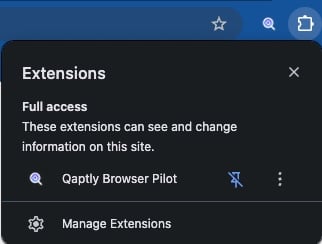
For easy access, pin the extension to your browser toolbar:- Click the puzzle icon (Extensions) in the browser toolbar
- Find Qaptly Browser Pilot in the list
- Click the pin icon next to it
Verify Installation
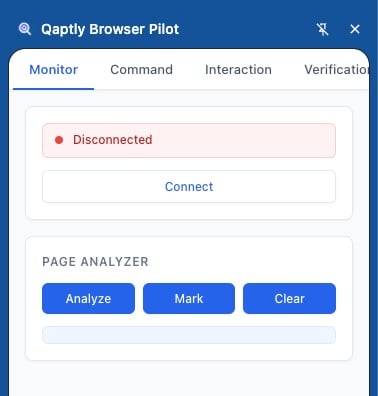
To confirm the extension is working:- Click the Qaptly icon in your toolbar
- The Side Panel should open on the right side of your browser
- You should see “Disconnected” status (this is normal before connecting to Desktop)
Extension Permissions
The extension will automatically request the following permissions during installation:- sidePanel: Display the control panel interface
- storage: Save settings and temporary data
- activeTab: Read current tab information
- tabs: Manage tab states for recording and execution
- scripting: Inject tracking scripts into web pages
- webNavigation: Monitor page navigation events
- debugger: Enable deep page analysis for element detection and console log collection
- offscreen: Manage background WebSocket connection
Troubleshooting Installation
Extension Installation Blocked
If Chrome blocks the installation:- Check if your organization has policies restricting extensions (visit chrome://policy)
- Contact your IT administrator to whitelist Qaptly Browser Pilot
- Verify you’ve enabled Developer Mode
”This extension may have been corrupted”
If you see this error:- Re-download the extension package
- Ensure you fully extracted all files from the .zip
- Try loading the extension again
Extension Doesn’t Appear in Toolbar
If the extension icon isn’t visible:- Open chrome://extensions
- Verify the extension is enabled
- Click the puzzle icon and pin the extension manually
Next Steps
After installation:- Launch your Qaptly Desktop application
- Complete Setup & Connection
- Start recording your first test case