

Connection Issues
Device Not Appearing in Qaptly Auto
Symptoms: No device shows in the Devices section. Solutions:- Check USB Connection: Ensure the cable is securely connected. Try a different port or cable.
- Unlock Device: The iPhone must be unlocked for Qaptly Auto to detect it.
- Trust This Computer: If prompted on your iPhone, tap Trust and enter your passcode.
- Restart Qaptly Auto: Quit and relaunch the application.
”Connect” Button Does Not Work
Solutions:- Ensure Developer Mode is enabled on your iOS device.
- Disconnect and reconnect the USB cable.
- Restart both your Mac and iPhone.
Developer Mode Issues
Developer Mode Not Showing in Settings
Symptoms: You cannot find Developer Mode in Settings > Privacy & Security. Solution: Developer Mode only appears after connecting your device to a Mac with Xcode installed. This is a one-time requirement:- Install Xcode from the App Store.
- Connect your iPhone via USB.
- Open Xcode and go to Window > Devices and Simulators.
- Xcode will detect the device and prompt you to enable Developer Mode.
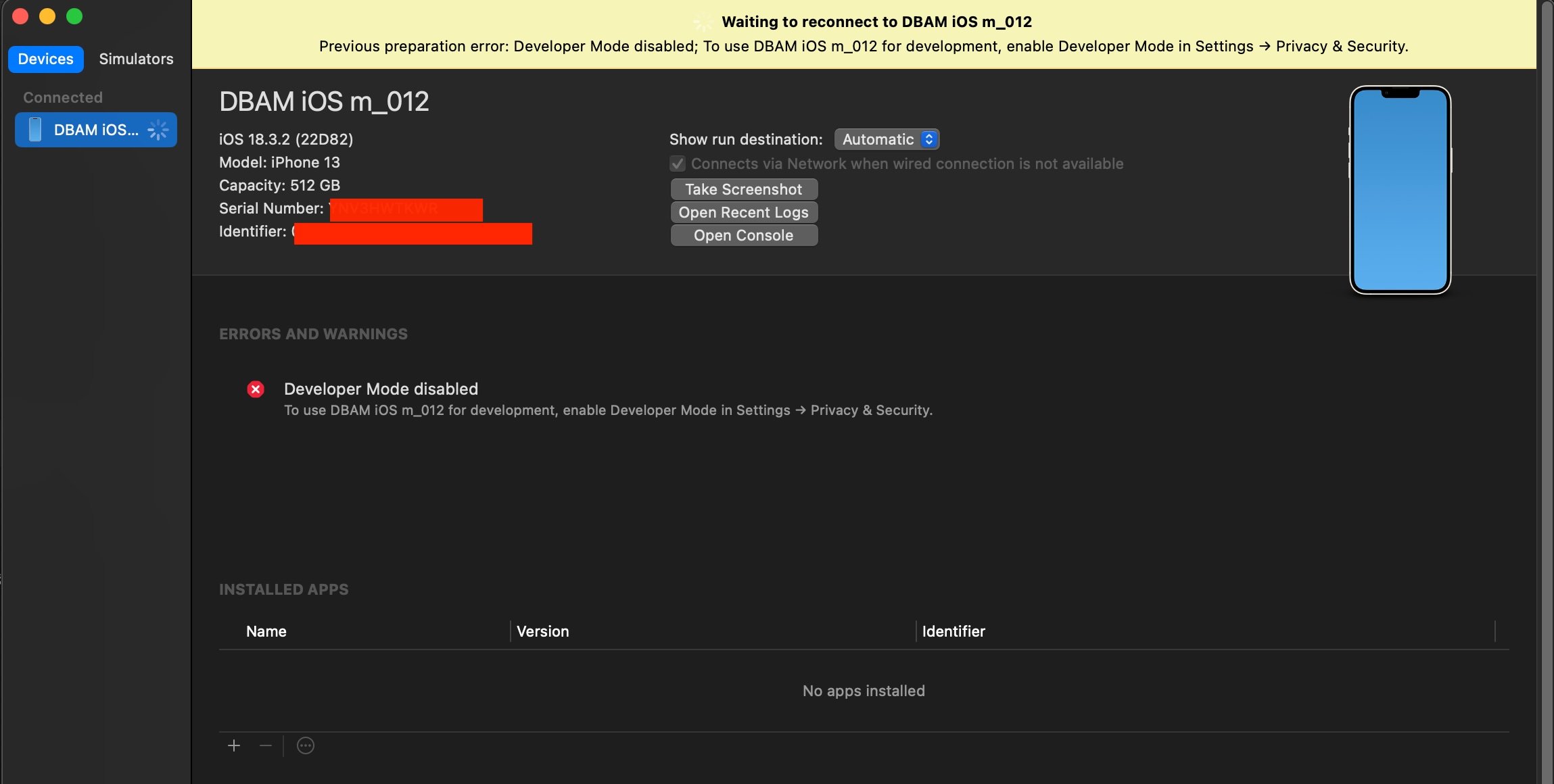
- Follow the on-screen instructions to enable Developer Mode on your iPhone.
- After reboot, Developer Mode will be available in Settings.
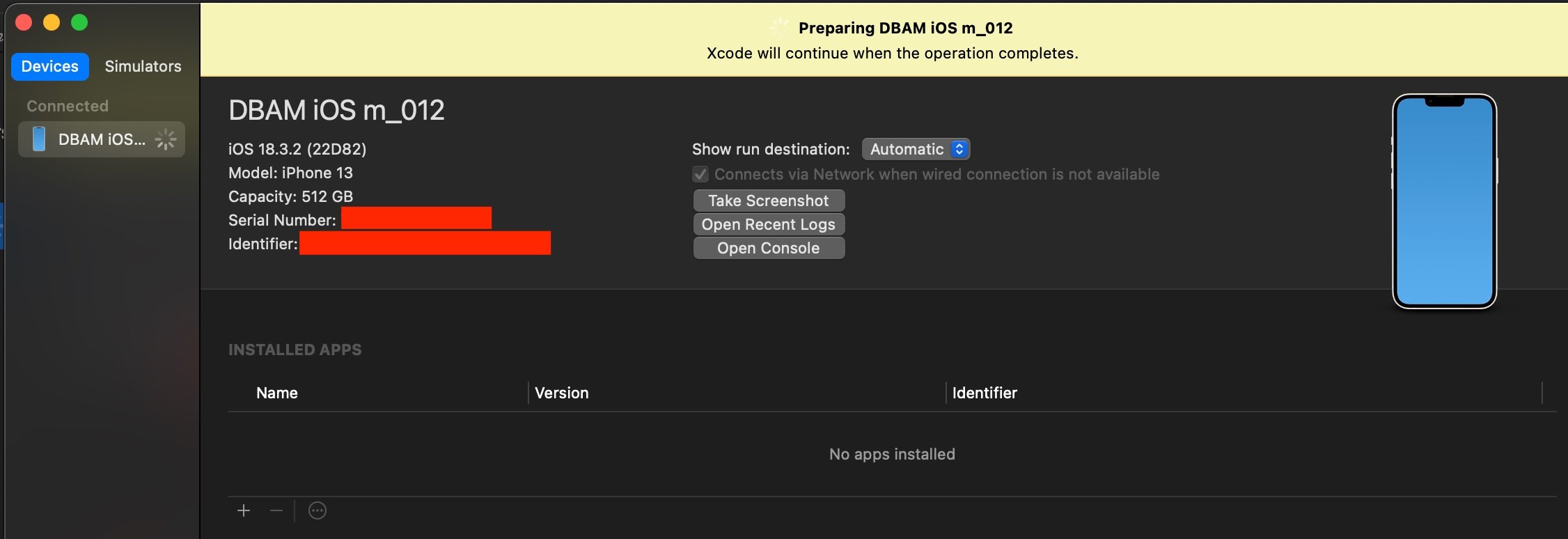
Note: Xcode is only needed for this initial setup. You do not need Xcode to use Qaptly Auto for daily GPS simulation.
GPS Simulation Issues
Location Not Updating on Device
Symptoms: The app on your iPhone still shows the real location. Solutions:- Restart the app: Force close the app you are testing and reopen it.
- Check Location Services: Ensure Location Services are enabled in iOS Settings > Privacy & Security > Location Services.
- Verify Connection: Check that the Devices section shows Disconnect button (indicating active connection).
Simulation Stops Unexpectedly
Solutions:- Ensure your Mac is not going to sleep.
- Check USB connection is stable.
- Restart the route simulation by clicking Play again.
Licensing Issues
Test Mode for Unlicensed Devices
Symptoms: Your device is not licensed but you want to try the GPS simulation. Solution: Unlicensed devices can use Test Mode. In Test Mode, the simulated location will be forced to Apple Park (37.334722, -122.009167). This allows you to verify that the GPS simulation is working before purchasing a license.Location Randomly Resets to Apple Park
Symptoms: You are not in Test Mode, but the location keeps resetting to Apple Park unexpectedly. Solutions:- Update to the latest version: This may be a bug in an older version. Download the latest version from: https://apps.dbam.ai/qaptly-auto-ios/release/QaptlyAuto-latest.dmg
- Verify your license: Ensure your device is properly licensed and bound to your account.
Getting Help
If you continue to experience issues:- Check for updates to Qaptly Auto for iOS.
- Ensure your macOS and iOS versions are up to date.
- Contact support at
[email protected].