Prerequisites
Before connecting:- Qaptly Auto for iOS is installed on your Mac
- You have a USB cable (Lightning or USB-C) to connect your iPhone
Step 1: Enable Developer Mode on Your iOS Device
For devices running iOS 16 or later, you must enable Developer Mode to allow GPS simulation.- On your iOS device, go to Settings > Privacy & Security.
- Scroll to the bottom and tap Developer Mode.
- Toggle the switch to On.
- Restart your device when prompted.
- After restart, unlock your device and tap Turn On in the confirmation dialog.
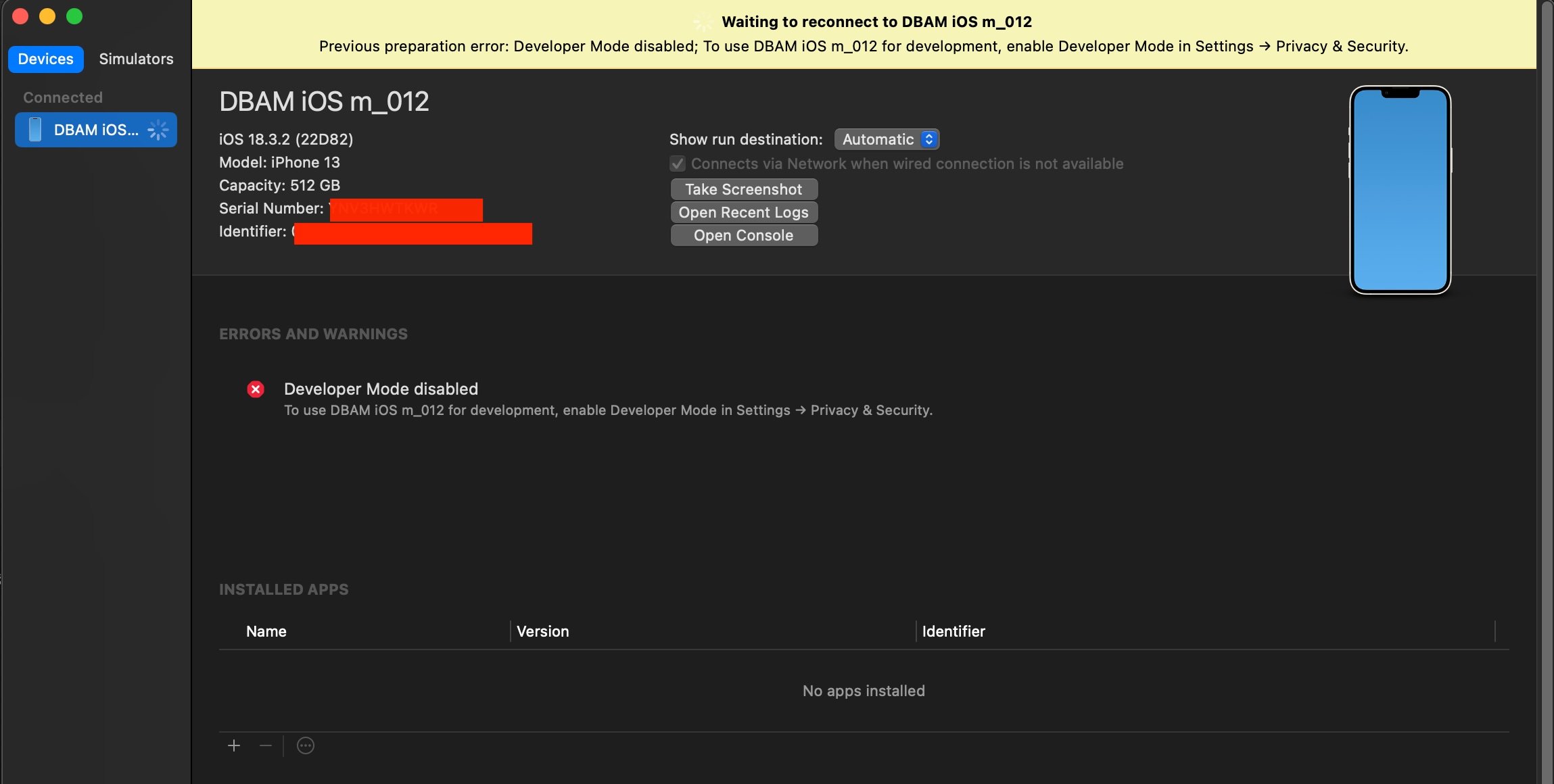
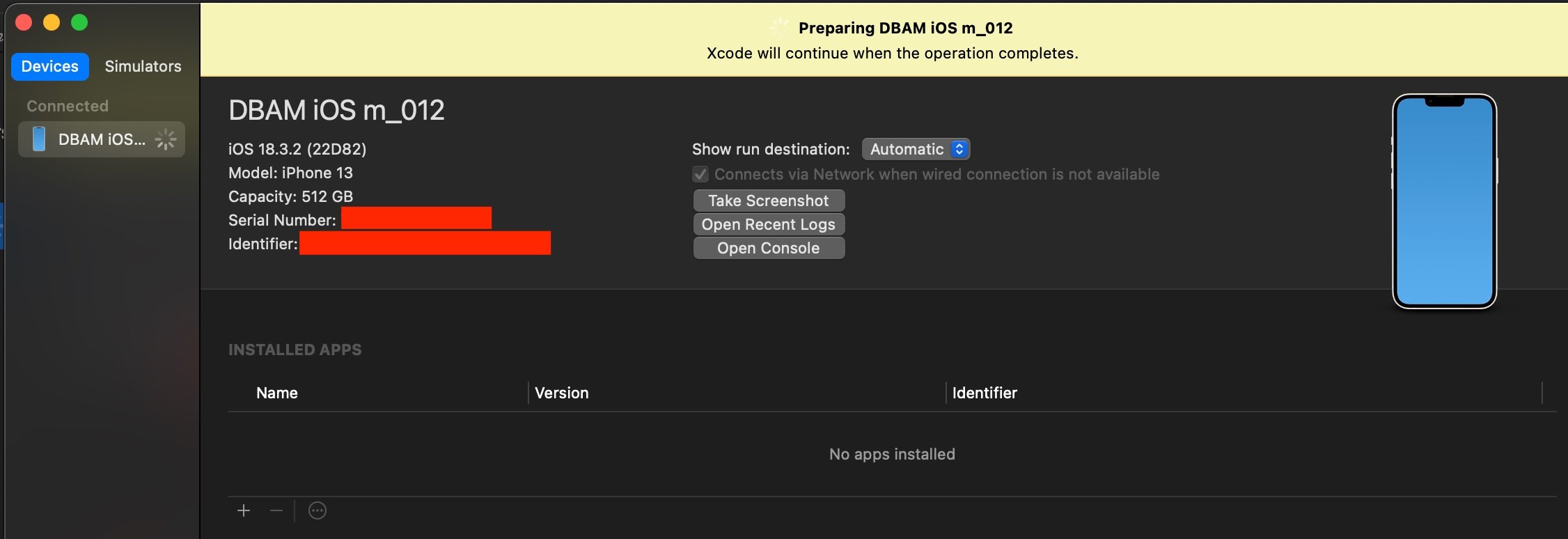
Note: If you don’t see the Developer Mode option, you may need to connect your device to a Mac with Xcode installed once. Xcode will prompt you to enable Developer Mode. This is a one-time setup.
Step 2: Connect Your Device via USB
- Connect your iPhone to your Mac using a USB cable.
- Unlock your iPhone.
- If prompted with “Trust This Computer?”, tap Trust and enter your device passcode.
Step 3: Connect in Qaptly Auto
- Launch Qaptly Auto for iOS on your Mac.
- In the Devices section on the left sidebar, your device will appear with a Connect button.

- Click Connect to establish the connection.
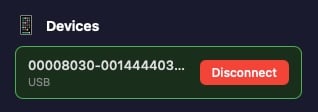
- Once connected, the button changes to Disconnect, indicating the device is ready for GPS simulation.