

Overview
After installing the extension, you need to connect it to the Qaptly Desktop application to enable test recording and execution. The extension communicates with Desktop via WebSocket for real-time data streaming.Prerequisites
Before connecting the extension:- Qaptly Desktop application is installed and running
- WebSocket service is started in the Desktop application
- Extension is successfully installed in your browser
Initial Connection
Step 1: Launch Desktop Application
- Start your Qaptly Desktop application
- Navigate to Pilot Control section
- Ensure the Browser Pilot service is running
- Verify WebSocket status shows as “Active”
Step 2: Open Side Panel
- Click the Qaptly icon in your browser toolbar
- The Side Panel will open on the right side of your browser window
Step 3: Connect to Desktop
- In the Side Panel, look for the Connection Status section
- You’ll see status showing “Disconnected”
- Click the “Connect” button
- The extension will automatically connect to Qaptly Desktop
- Status will change to “Connected” with a green indicator
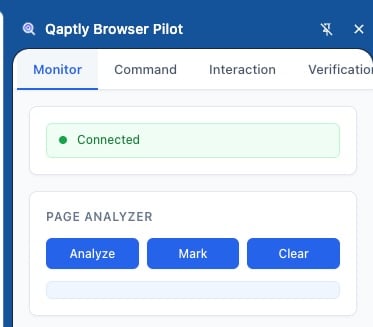
Side Panel Interface
The Side Panel is your main control interface and consists of five tabs:Monitor Tab
The default tab showing system monitoring and control options: Connection Section:- Status Indicator: Shows WebSocket connection state (Connected/Disconnected)
- Connect Button: Manually trigger connection to Desktop
- Take Snapshot: Capture current page screenshot manually
- Click Test: Test button for debugging click functionality
- Analyze: Analyze page structure and interactive elements
- Mark: Highlight analyzed elements on the page
- Clear: Remove all highlights
- Enable tracking toggle: Start/stop user behavior recording
- Statistics Display: Real-time counters for:
- Mouse Move events
- Click events
- Input events
- Scroll events
- Toggle events
Command Tab
Controls action execution from Desktop: Auto Screenshot Toggle: Enable automatic screenshots during action execution Execute/Stop Buttons:- Execute: Start running queued actions
- Stop: Interrupt current execution
- Action type (click, input, navigate, etc.)
- Target element details
- Execution status
Interaction Tab
Appears when Desktop requests user input for element or area selection: Selection Mode Toggle:- Element Selection: Pick individual UI elements (default)
- Area Selection: Select rectangular screen regions
- Confirm: Submit selected element/area
- Cancel: Discard current selection
- Stop: Exit selection mode
- Select Parent: Choose parent element of current selection
- Select Whole Page: Select entire page as target area
Verification Tab
Displays during AI-powered verification of execution results: Shows message: “Verifying Execution - Please do not close this tab. The AI assistant is verifying the results.” Purpose: Keeps the browser context active while Desktop’s AI analyzes execution outcomes. The tab automatically switches back to Monitor when verification completes.Advanced Tab
System information and controls: System Info:- Version: Displays current extension version
- Reload Extension: Quick reload button (equivalent to reloading in chrome://extensions)
Understanding Connection Status
Connected (Green)
- WebSocket connection established successfully
- Data streaming to Desktop is active
- Ready to record or execute tests
Disconnected (Red)
- No connection to Desktop
- Recording and execution unavailable
- Click “Connect” to retry connection
Troubleshooting Connection
If connection fails:- Verify Desktop application is running
- Check that Browser Pilot service is enabled in Desktop
- Ensure no firewall is blocking localhost:8080
- Try clicking “Connect” button again
- Check Desktop application logs for WebSocket errors
Extension Permissions
The extension uses the following Chrome APIs (automatically granted during installation):Automatic Features
Client Name Generation
On first run, the extension automatically generates a unique client identifier:- Format:
{browser}_{randomId}(e.g.,chrome_a1B2c3D4e5F6) - Stored locally for persistent identification
- Sent to Desktop for session tracking
Auto-Reconnection
If connection drops:- Extension attempts automatic reconnection
- Retries up to 3 times with 5-second intervals
- Manual reconnection available via “Connect” button
Page Restrictions
The extension cannot operate on certain browser pages due to Chrome security policies: Restricted Pages:chrome://internal pageschrome://extensions- Chrome Web Store
- Browser settings pages
- All
http://andhttps://websites - Local development servers (localhost)
Next Steps
After successful connection:- Navigate to a test website
- Start recording user behaviors in the Monitor tab
- Learn about Usage Guide for detailed features