

Overview
Qaptly Pilot for Android is the mobile application that enables automated testing on Android devices.System Requirements
- Android 7.0 (API 24) or higher
- At least 20MB free storage space
Installation Steps
Step 1: Enable Developer Options
Before installation, you must enable Developer Options on your Android device:- Open Settings on your Android device
- Navigate to About Phone
- Tap OS Version 7 times to enable Developer Options
- You’ll see a message: “You are now a developer!”

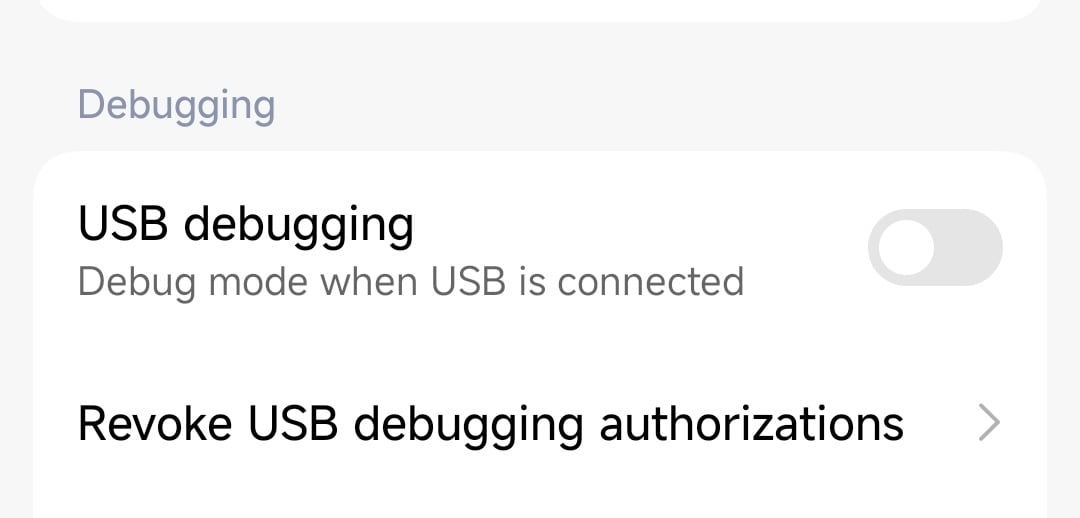
Step 2: Enable USB Debugging
- Go back to Settings > Developer Options
- Toggle USB Debugging ON
- Confirm the dialog
Step 3: Install Android Platform Tools
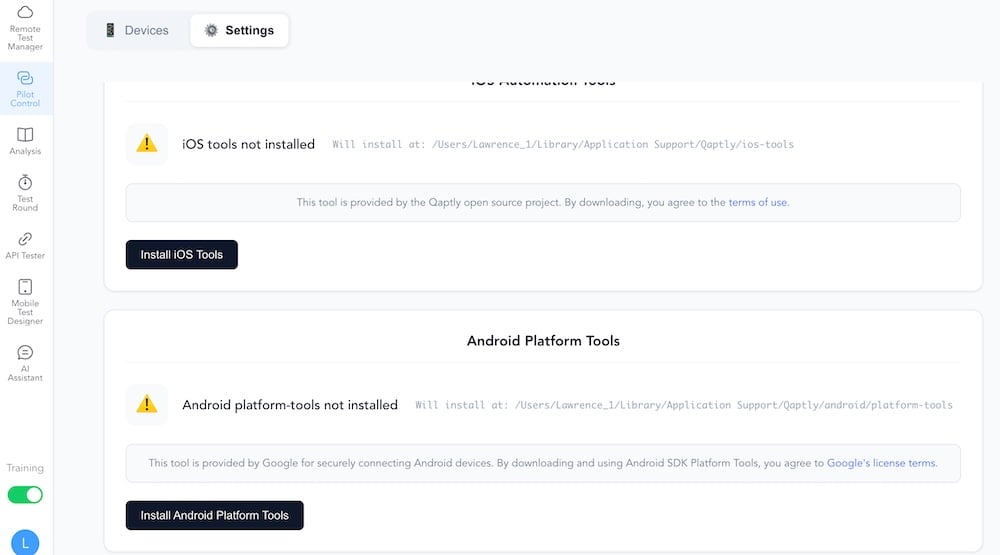
Before connecting your device, you need to install Android Platform Tools on your computer:- Open Qaptly for Mac/Windows
- Navigate to Pilot Control
- Click on the Settings tab
- Find Android Platform Tools section
- Click Install Android Platform Tools
- Wait for the installation to complete
Step 4: Connect Device via USB
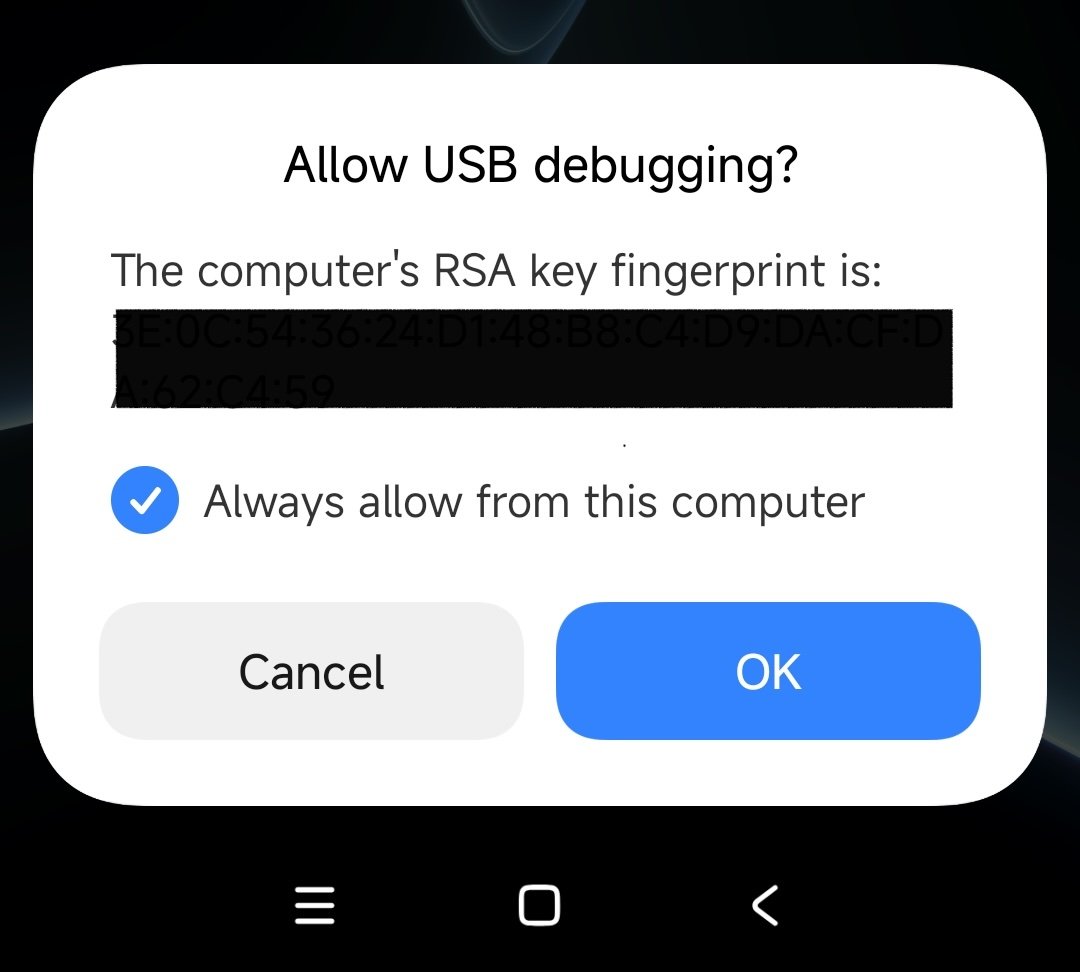
- Connect your Android device to your computer using a USB cable
- On your device, you’ll see a prompt: “Allow USB debugging?”
- Check Always allow from this computer
- Tap Allow
Step 5: Install Qaptly Pilot App
- In Qaptly Desktop, go back to the Devices tab in Pilot Control
- Enable the Qaptly Pilot Service
- Your device should now appear in the device list
- Click Install button on your device
- The installation will start automatically
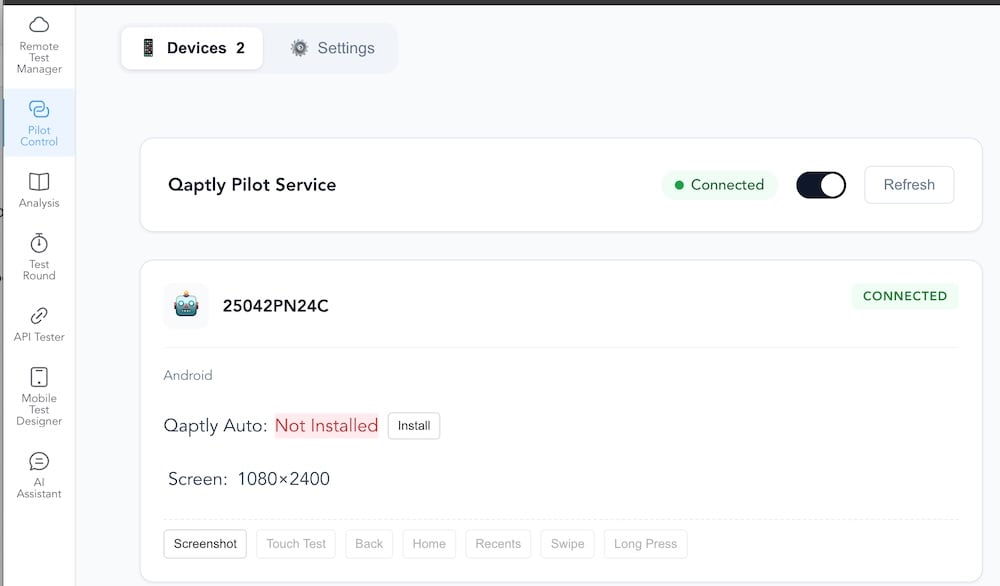
- Wait for the installation to complete
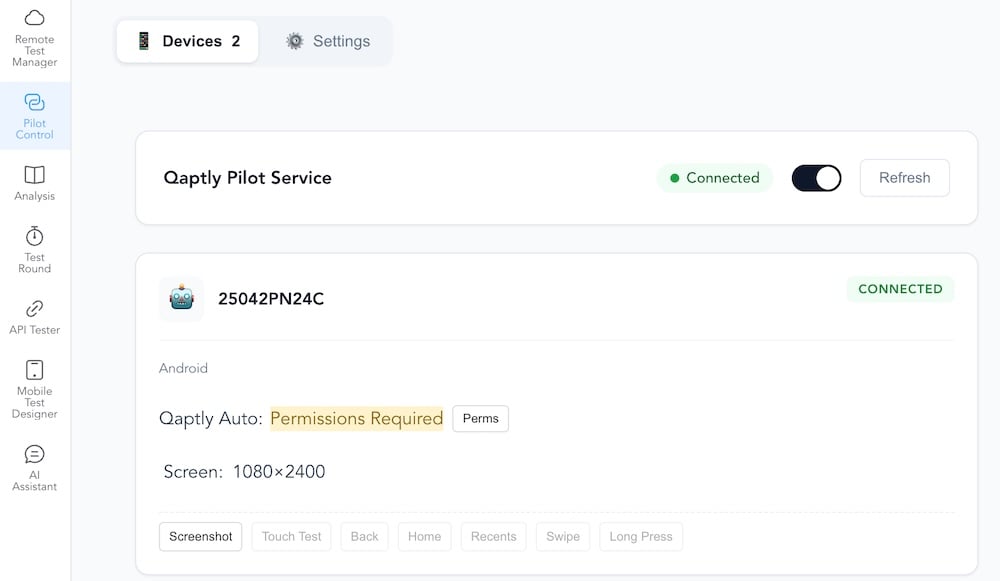
Granting Installation Permission
If this is your first time installing an APK from outside the Play Store:- When prompted, tap Settings
- Enable Install unknown apps for your browser or file manager
- Return to the installation and continue
App Icon
After successful installation, you’ll see the Qaptly Auto icon in your app drawer: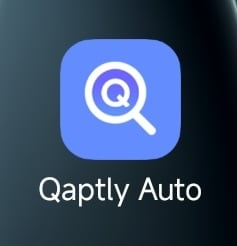
Next Steps
After installation:- Open the Qaptly Pilot app
- Complete the Setup & Permissions
- Connect to your Qaptly Desktop application