

Installation Issues
Cannot Install APK
Problem: Installation fails or is blocked Solutions:- Enable “Install unknown apps” for your browser/file manager
- Check available storage space (need at least 100MB)
- Verify Android version is 7.0 or higher
- Try installing from Desktop application instead
Installation Succeeded but App Won’t Open
Solutions:- Restart your device
- Clear app cache from Settings > Apps
- Reinstall the app
- Check for Android system updates
Permission Issues
Accessibility Service Keeps Disabling
Solutions:- Disable battery optimization for Qaptly Pilot
- Add app to “Protected apps” (if available on your device)
- Check for MIUI/OneUI/other custom ROM restrictions
- Grant all requested permissions
”Display Over Other Apps” Permission Not Working
Solutions:- Manually enable in Settings > Apps > Qaptly Pilot
- Restart the app after enabling
- Check for conflicting overlay apps
- Try disabling other overlay permissions temporarily
Connection Issues
Device Not Appearing in Desktop
Solutions:- Verify USB debugging is enabled
- Check USB cable connection
- Try a different USB port
- Run
adb devicesin terminal to verify ADB connection - Revoke and re-authorize USB debugging
Connection Drops During Testing
Solutions:- Use a high-quality USB cable
- Disable USB power saving on device
- Keep device screen on during testing
- Check for loose USB connections
Test Execution Issues
Tests Not Starting
Solutions:- Verify all permissions are granted
- Check Qaptly Pilot service is running
- Restart the app
- Reconnect from Desktop application
Tests Fail Randomly
Solutions:- Disable background app optimization
- Turn off battery saver mode
- Close unnecessary background apps
- Increase wait times in test steps
UI Elements Not Being Found
Solutions:- Verify Accessibility Service is enabled
- Check app has focus during test
- Increase element detection timeout
- Update element locators if app UI changed
Command Execution Invalid
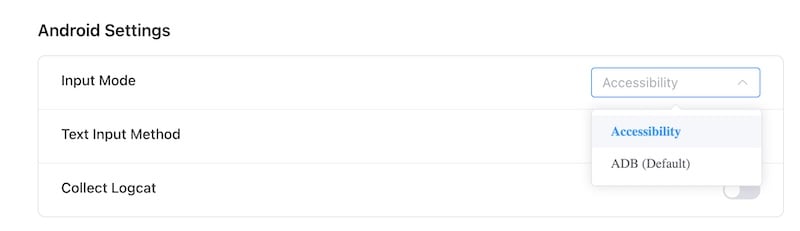
Solutions:- Go to Settings -> Pilots to adjust settings
- Try switching between Accessibility or ADB modes
Text Input Issues
Solutions:- Switch to the built-in Qaptly IME from Qaptly Auto for Android

Performance Issues
App Runs Slowly
Solutions:- Clear app cache
- Restart device
- Close background apps
- Check available storage space
- Reduce screen resolution if possible
High Battery Drain
Solutions:- Keep device plugged in during testing
- Reduce screen brightness
- Disable unnecessary connectivity (WiFi, Bluetooth)
- Close unused apps
Error Messages
”Service Not Running”
Cause: Qaptly Pilot background service has stopped Solutions:- Reopen the app
- Re-enable Accessibility Service
- Restart device
- Reinstall if issue persists
”Permission Denied”
Cause: Required permissions not granted Solutions:- Review Setup & Permissions
- Grant all required permissions
- Restart app after granting permissions
”Connection Lost”
Cause: USB connection interrupted Solutions:- Check physical USB connection
- Verify USB debugging is still enabled
- Reconnect device
- Try different USB cable/port
Device-Specific Issues
Samsung Devices
- May need to disable “Optimize battery usage”
- Check Knox security settings
- Enable “Install unknown apps” in settings
Xiaomi/MIUI Devices
- Add to “Autostart” apps
- Disable battery optimization
- Enable “Display pop-up windows” permission
Huawei Devices
- Add to “Protected apps”
- Disable “Close apps after screen lock”
- Enable all app permissions
Getting Help
If you continue experiencing issues:- Check the app version and update if available
- Review the Usage Guide
- Contact your administrator
- Provide error logs if available