

Required Permissions
Qaptly Pilot requires several system permissions to function properly:Accessibility Service
Purpose: Allows Qaptly to interact with UI elements during test automation. Setup Steps:- Open Settings on your device
- Navigate to Accessibility
- Find Qaptly Pilot or Qaptly Auto Service
- Toggle the service ON
- Confirm the permission prompt
Display Over Other Apps
Purpose: Enables screen streaming and overlay controls. Setup Steps:- Open Settings > Apps > Qaptly Pilot
- Tap Appear on top or Display over other apps
- Enable the permission
Storage Access
Purpose: Required for saving screenshots and test artifacts. Setup Steps:- Open Settings > Apps > Qaptly Pilot
- Tap Permissions
- Enable Storage or Files and media
Initial Configuration
First Launch
When you first open Qaptly Pilot:- Welcome Screen: Review the app introduction
- Permissions Request: Grant the required permissions
- Connection Setup: The app will be ready to connect to Qaptly Desktop
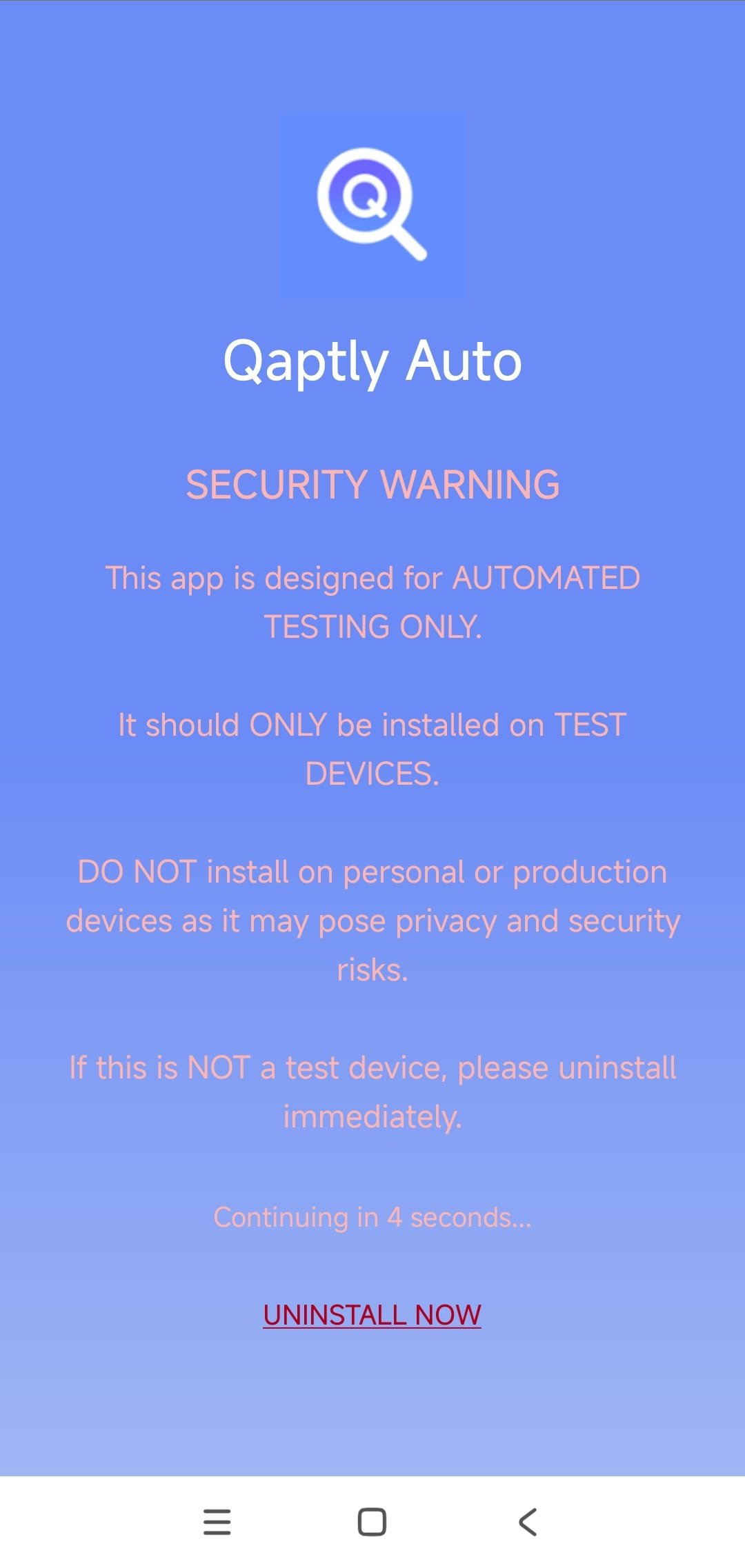
Step-by-Step Setup Guide
After completing the installation process, launch the Qaptly Pilot app to configure required permissions.Step 1: Launch Qaptly Pilot
Open the Qaptly Pilot app from your device’s app drawer. The app will check for required permissions and display their status: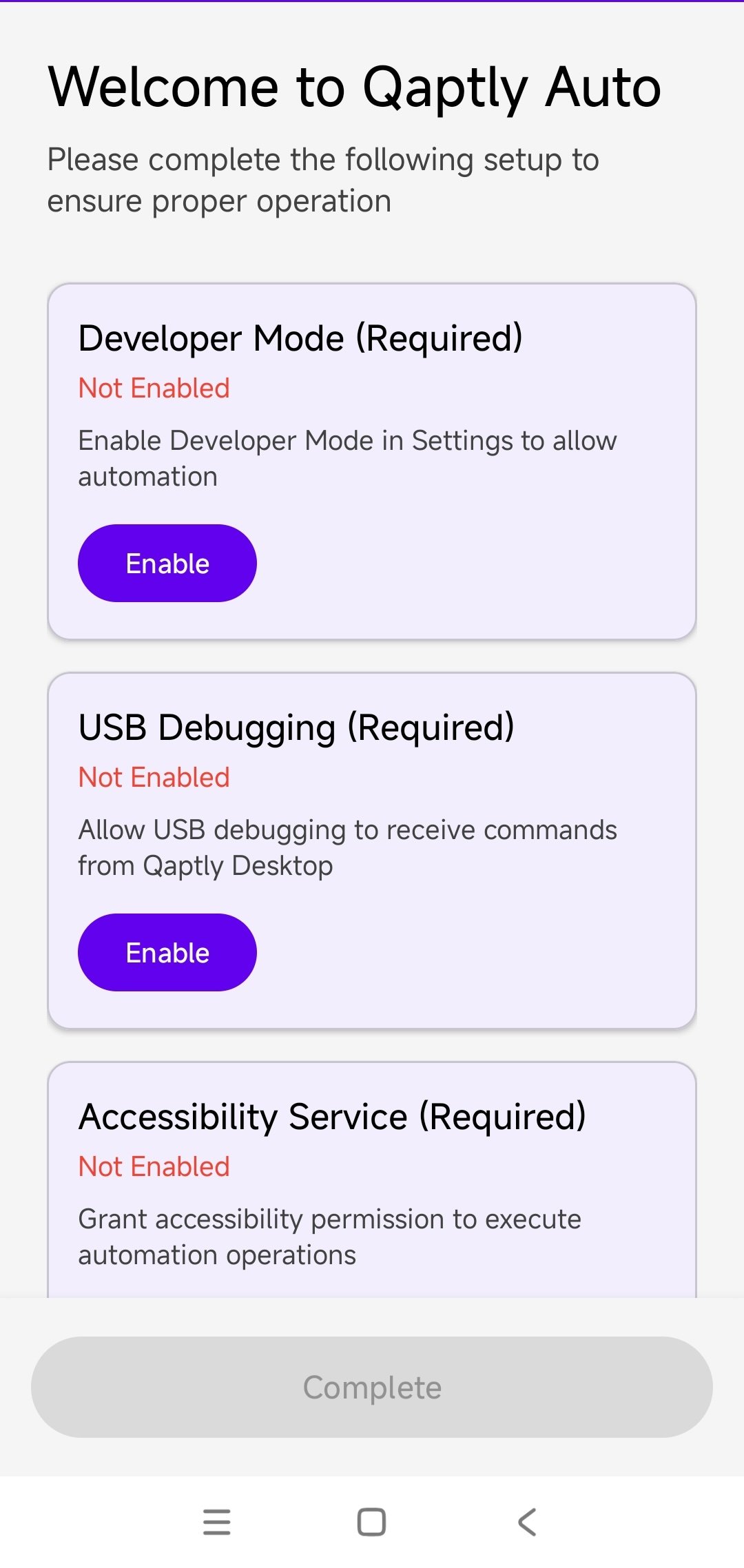
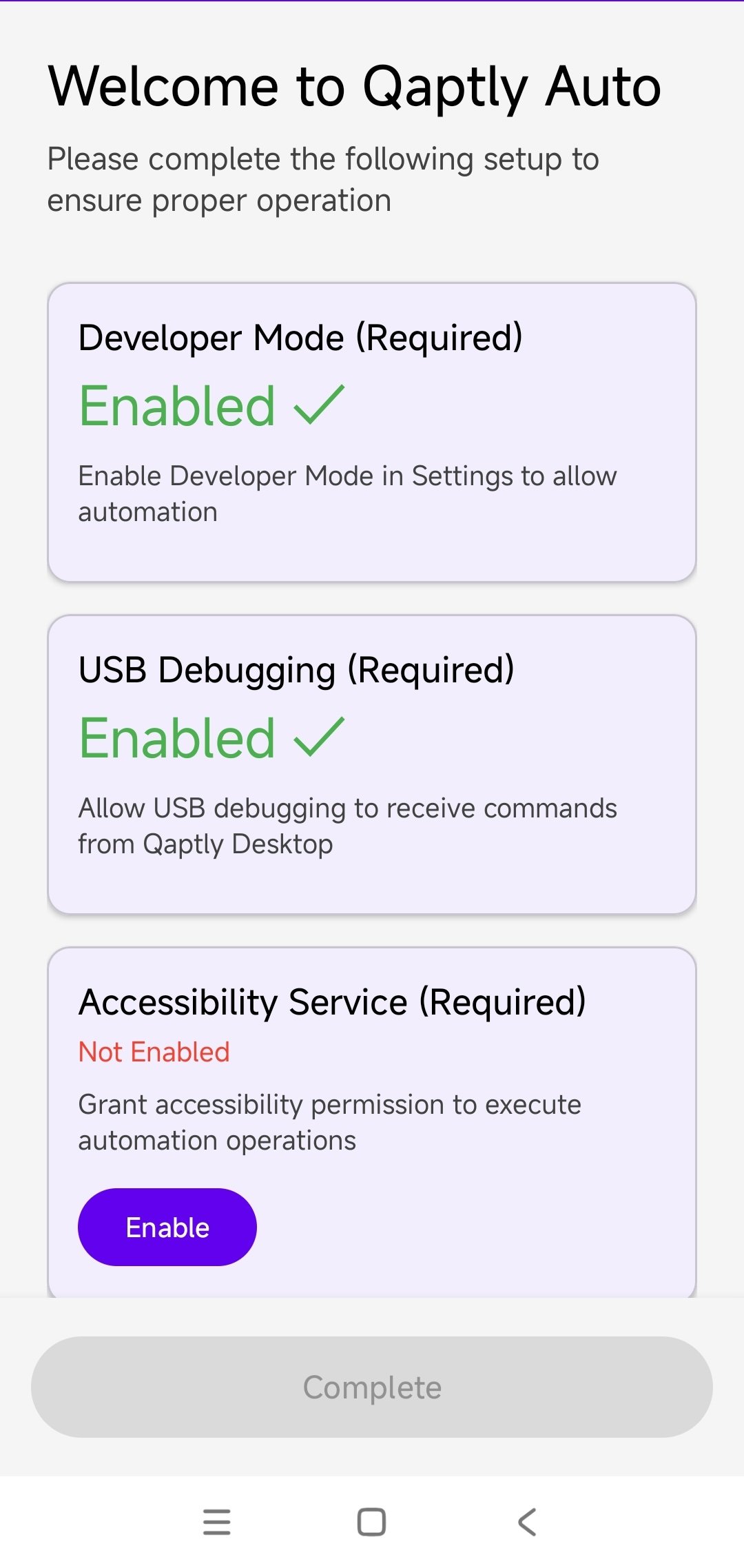
Step 2: Enable Accessibility Service
Tap the Enable button under Accessibility Service (Required) to open Android Settings: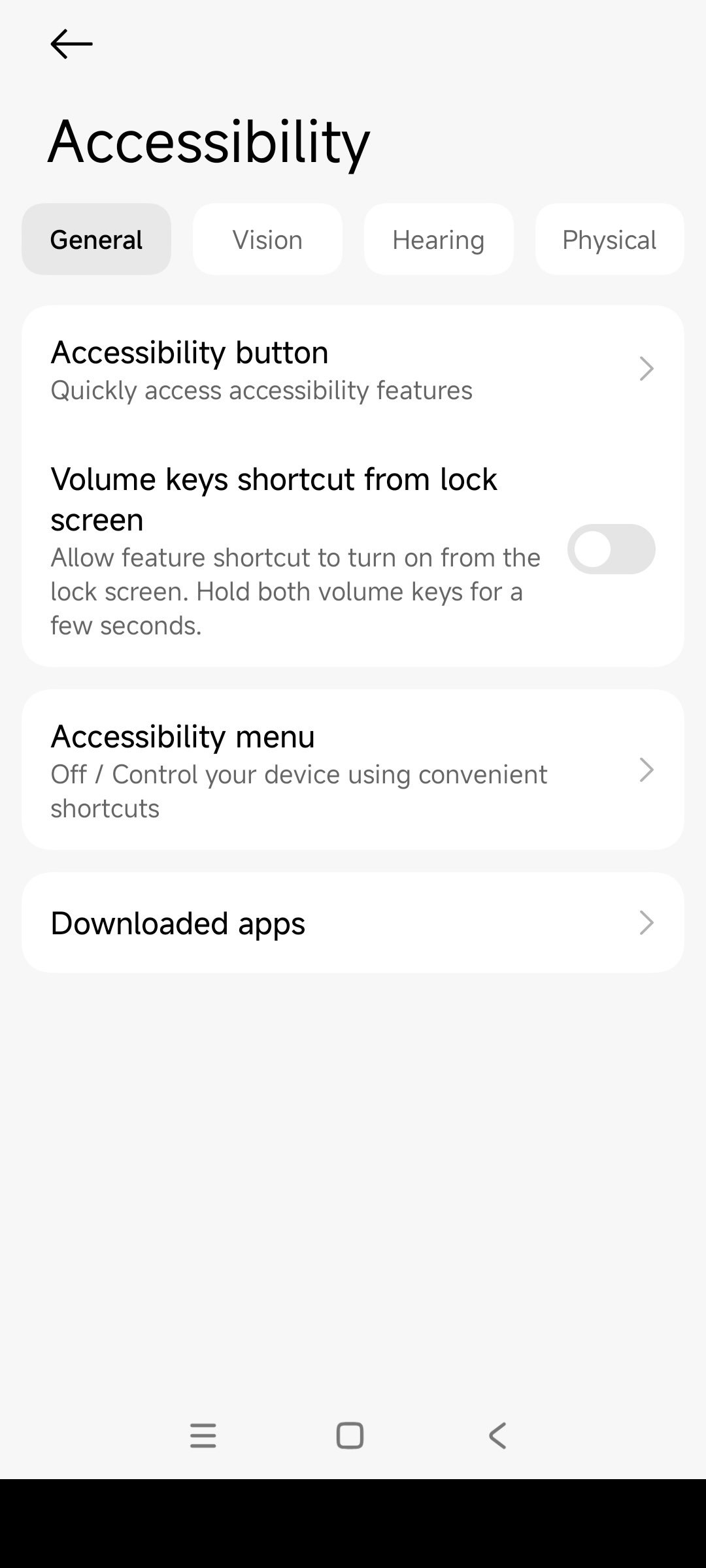
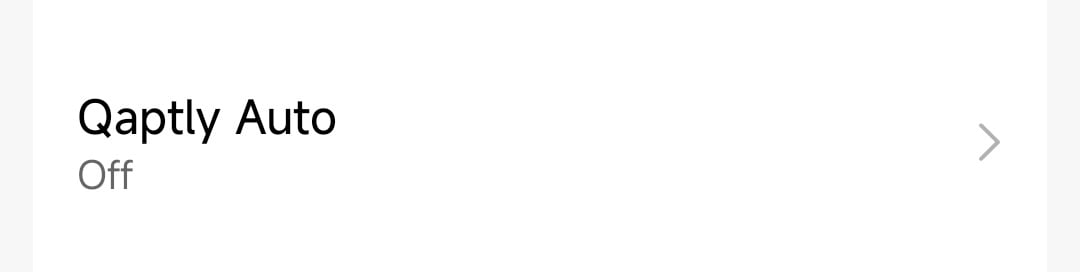
Step 3: Configure Qaptly Auto Service
Tap on Qaptly Auto to open the service details page: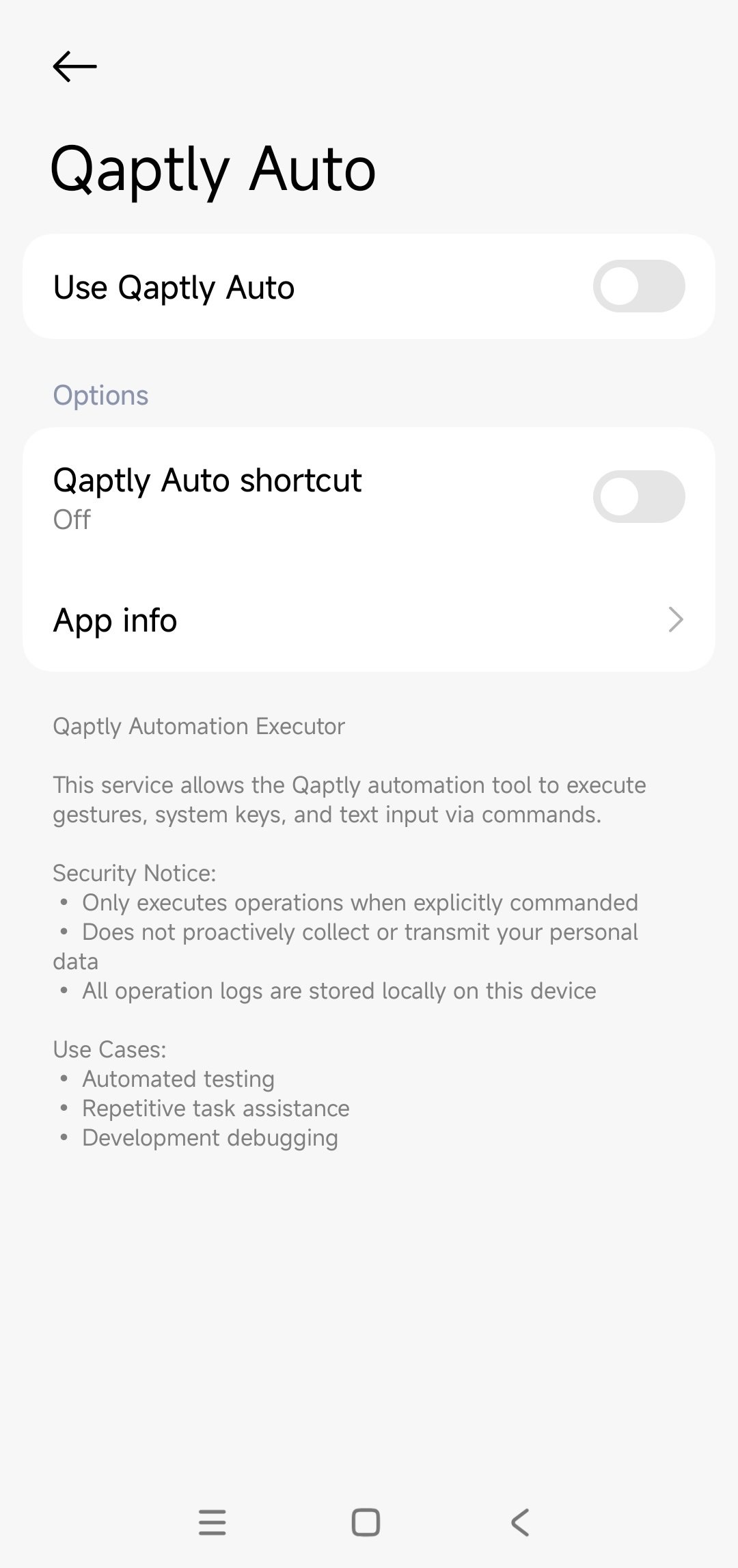
Step 4: Confirm Accessibility Permission
When you enable the service, Android will display a security warning explaining what permissions will be granted. Check the box “I’m aware of the possible risks, and assume all possible consequences voluntarily” and tap OK: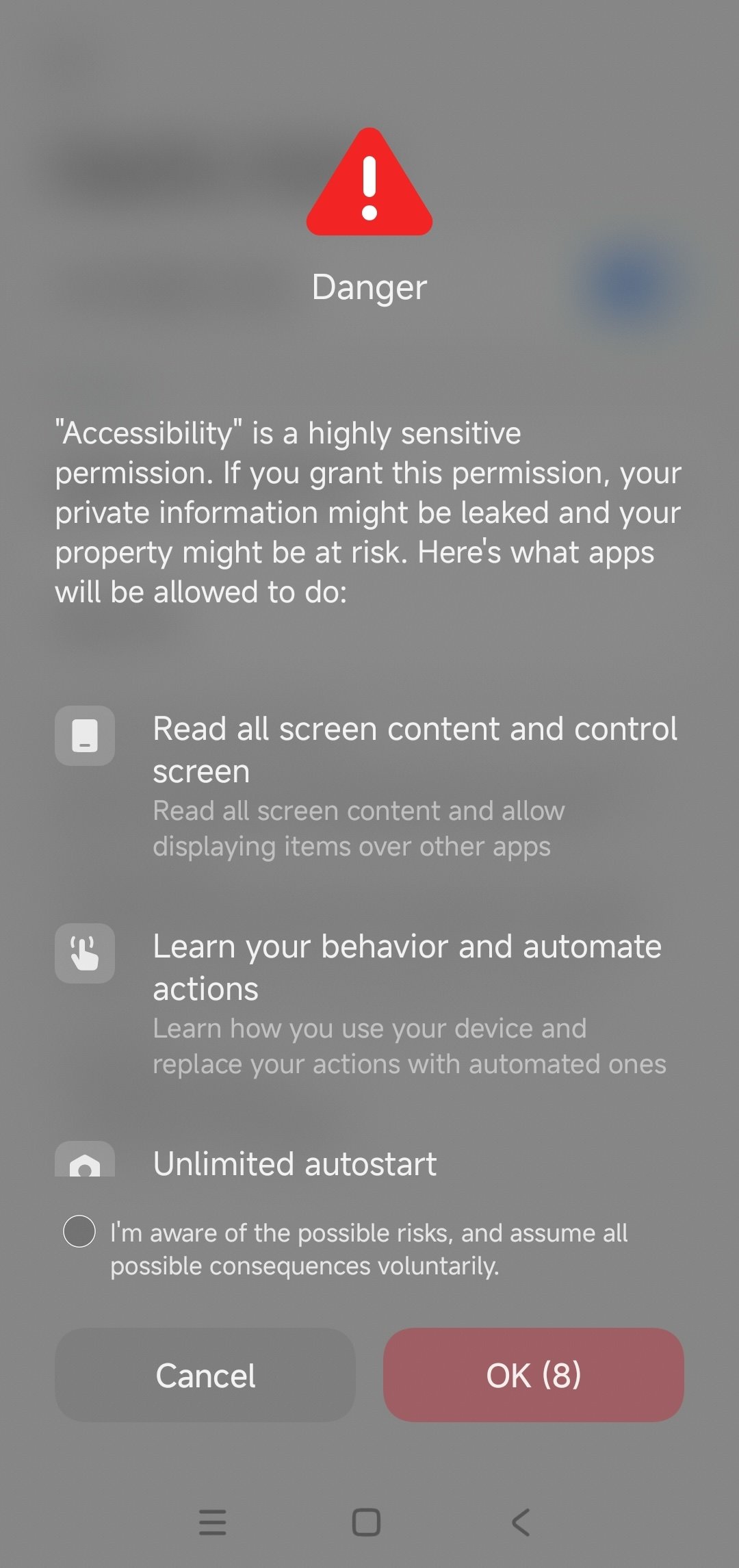
Step 5: Verify Accessibility Service
After granting the permission, return to the Qaptly Pilot app. You should see the Execution History screen, indicating that the Accessibility Service is now active: In the first time, there is nothing in the list. After some tests, it will be full of entries showing the actions performed by the service.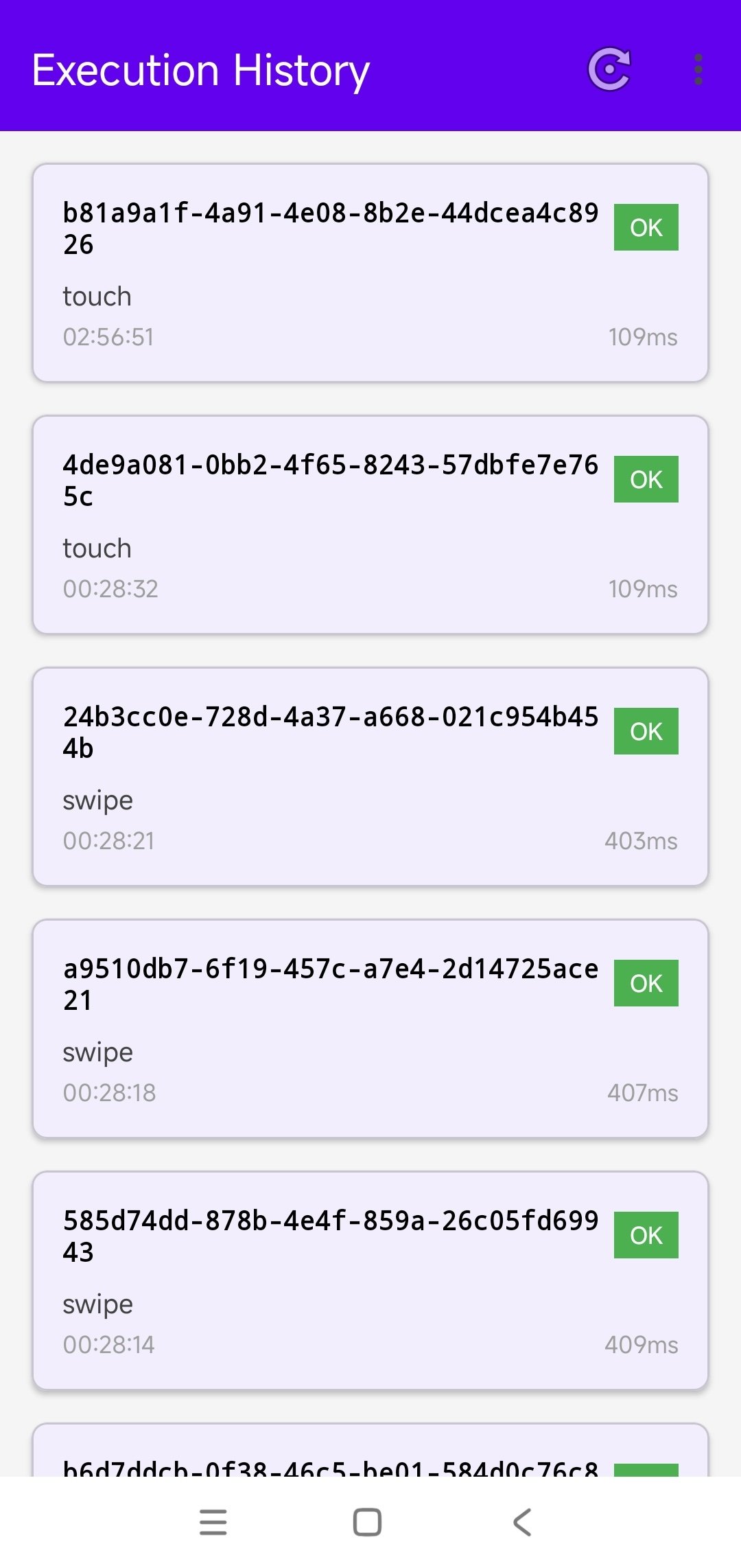
Step 6: Configure Optional Settings (Recommended)
The app will now show optional configurations that improve functionality: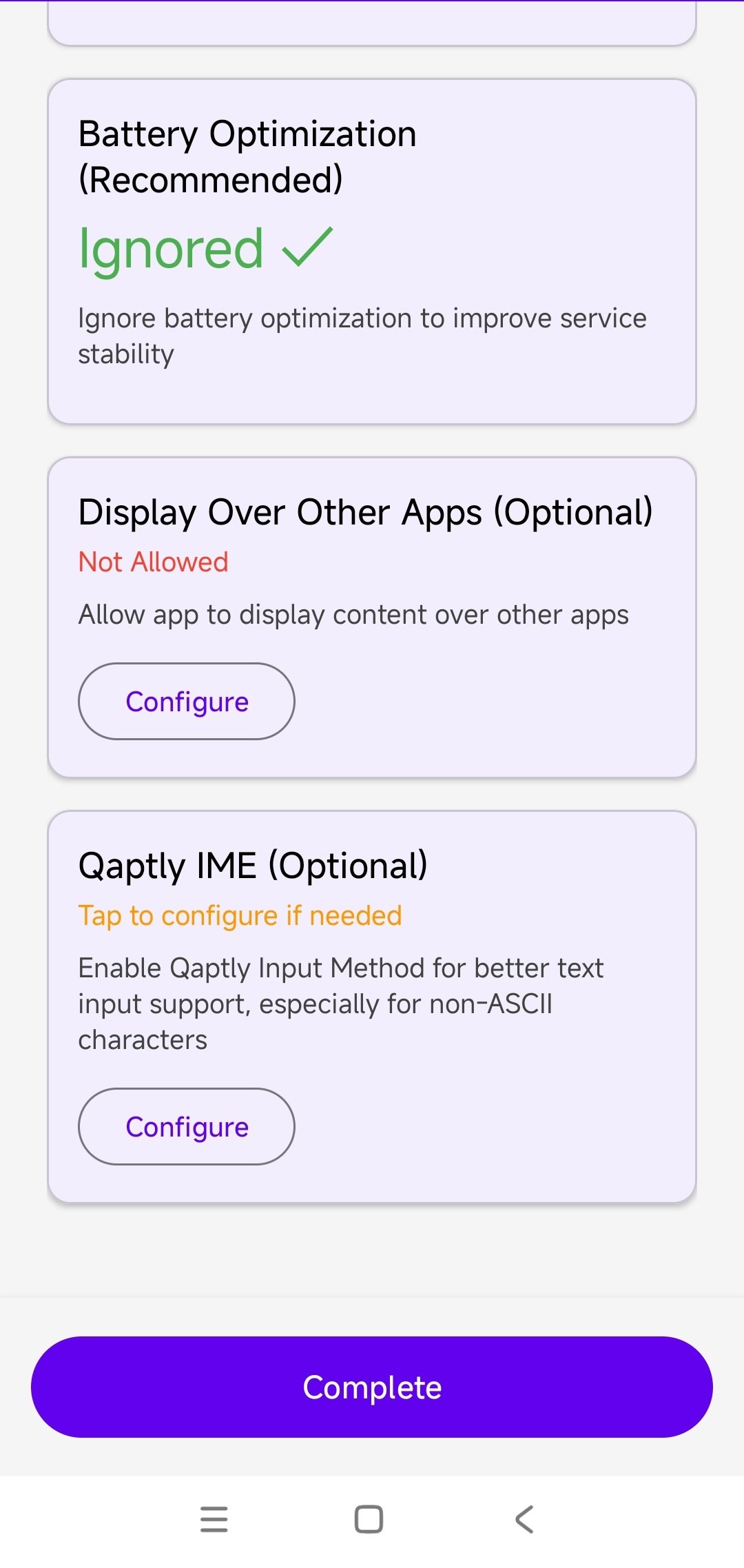
- Battery Optimization (Recommended): Already set to Ignored ✓ - This ensures the service runs reliably in the background
- Display Over Other Apps (Optional): Tap Configure to enable this if you need screen streaming features
- Qaptly IME (Optional): Tap Configure to enable Qaptly Input Method for better text input support
Step 7: Enable Qaptly IME (Optional)
If you choose to configure Qaptly IME, you’ll be taken to the keyboard settings where you can enable it: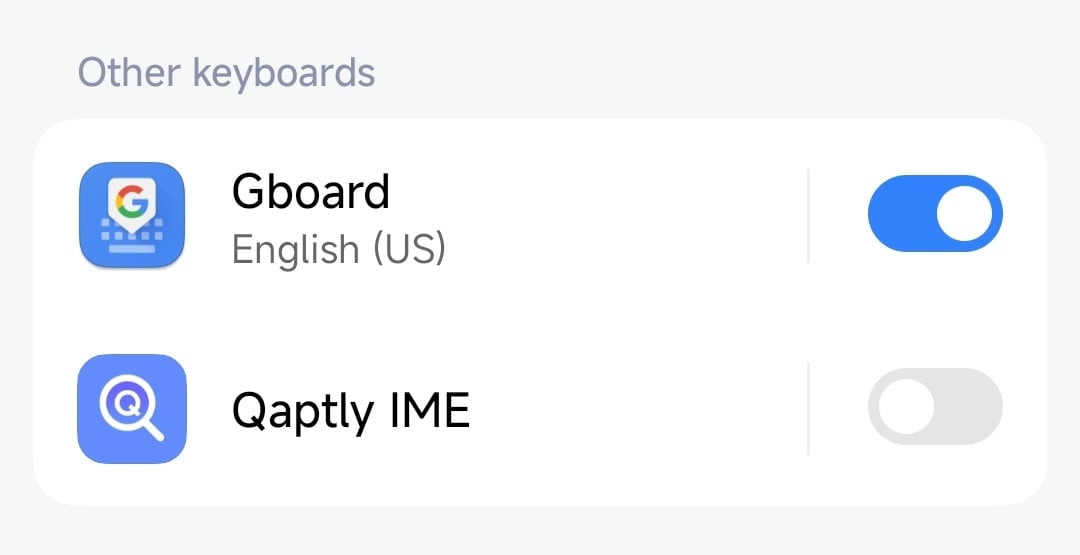
Step 8: Complete Setup
After configuring all settings, tap the Complete button to finish the setup process. Qaptly Pilot is now fully configured and ready to connect to Qaptly Desktop.Connection to Desktop
Qaptly Pilot connects to the Qaptly Desktop application:- Ensure your device is connected via USB (with USB debugging enabled)
- Open Qaptly Mac/Windows
- Navigate to Pilot Control
- Click on the Devices tab
- Start Qaptly Pilot Service
- Your device should appear in the device list with Ready status
Wireless Connection (ADB over Wi-Fi)
To use Qaptly Pilot wirelessly, you need to enable Wireless Debugging and connect via ADB over Wi-Fi.Prerequisites
- Your Android device running Android 11 or higher.
- Your Android device and your computer must be connected to the same Wi-Fi network.
Setup Steps
- On your Android device, go to Settings > Developer options.
- Scroll down and enable Wireless debugging.
- Tap on Wireless debugging to enter its settings menu.
- Tap Pair device with pairing code. A pop-up will appear displaying a 6-digit Wi-Fi pairing code and an IP address & Port (e.g.,
192.168.1.100:44444). - On your computer, open a terminal and run the ADB pair command:
- When prompted, enter the 6-digit pairing code shown on your device.
- After successful pairing, go back to the main Wireless debugging screen to find the Device IP address & Port (Note: this port is usually different from the pairing port, e.g.,
192.168.1.100:5555). - Run the connect command in your terminal:
- Once connected, your device will appear in Qaptly Desktop without needing a USB cable.
Troubleshooting
App Not Appearing in Accessibility Settings
- Reinstall the app
- Restart your device
- Check Android version compatibility
Permissions Keep Getting Disabled
- Check for battery optimization settings
- Add Qaptly Pilot to the exception list
- Disable adaptive battery for this app