

Overview
Qaptly Auto for iOS allows you to simulate GPS locations on your connected iOS device. The interface has two main modes: Spot (static location) and Route (moving simulation).Interface Overview
The main interface consists of:- Left Sidebar: Sign-in, Devices, location controls
- Map View: Interactive map for selecting locations
- Status Bar: Shows connection and simulation status
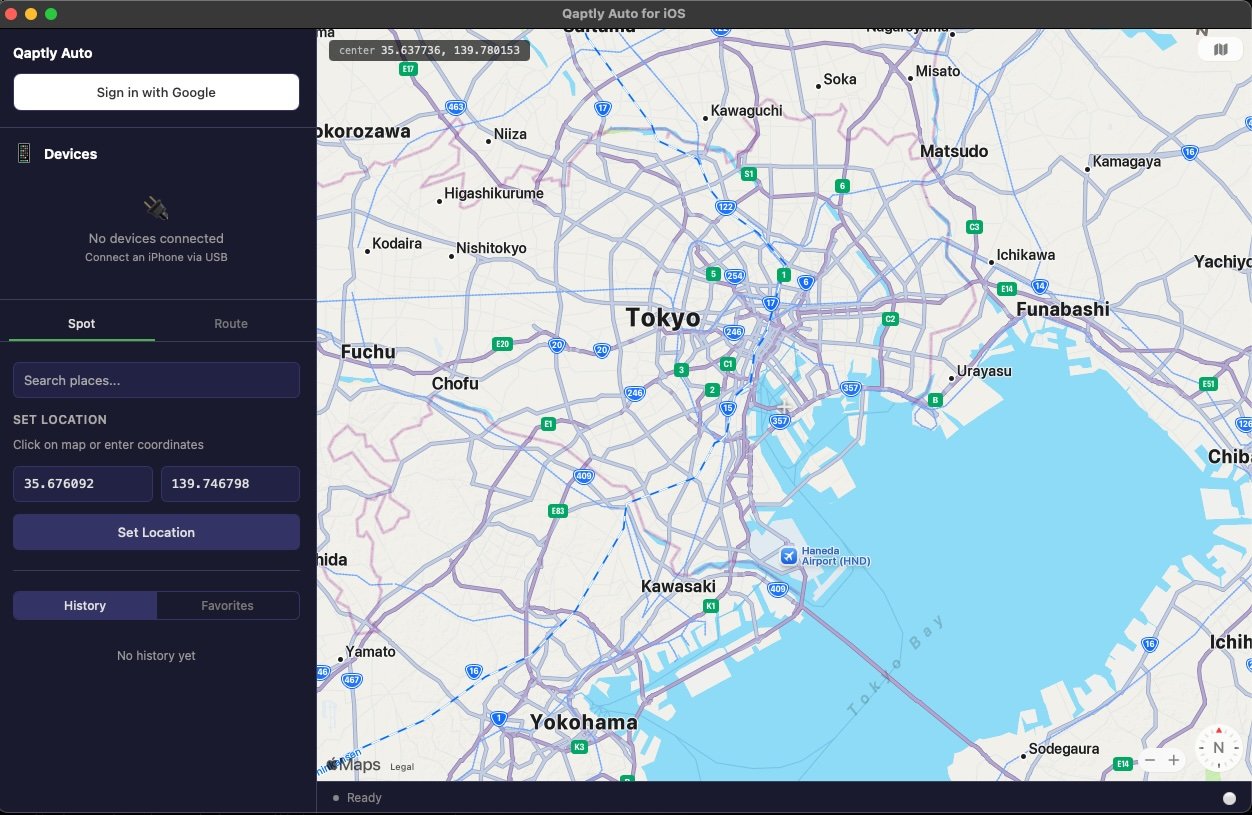
Simulating a Static Location (Spot)
Use the Spot tab to teleport your device to a specific location instantly.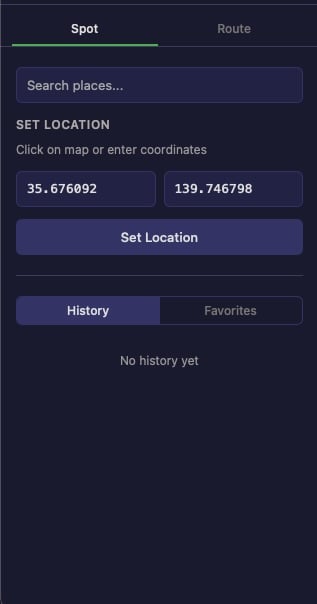
Search for a Location
Use the Search places… bar at the top to find a location by name, address, or landmark. Select from the search results to populate the coordinates.Enter Coordinates Manually
Under SET LOCATION, you can:- Click anywhere on the map to pick coordinates, or
- Enter latitude and longitude directly in the input fields.
History
Switch to the History tab to quickly access your previously used locations. This saves time when you need to return to locations you’ve tested before.Favorites
Switch to the Favorites tab to access your saved locations. Use this feature to bookmark frequently used test locations for quick access.Simulating a Route
Use the Route tab to simulate movement along a path.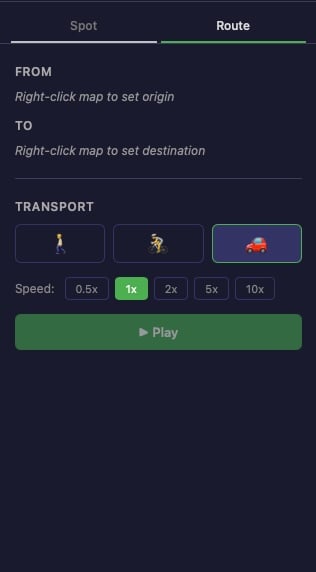
1. Create a Route
- Switch to the Route tab.
- Set the FROM (origin) point:
- Right-click on the map and select Route from here, or
- Enter coordinates manually in the FROM field.
- Set the TO (destination) point:
- Right-click on the map and select Route to here, or
- Enter coordinates manually in the TO field.
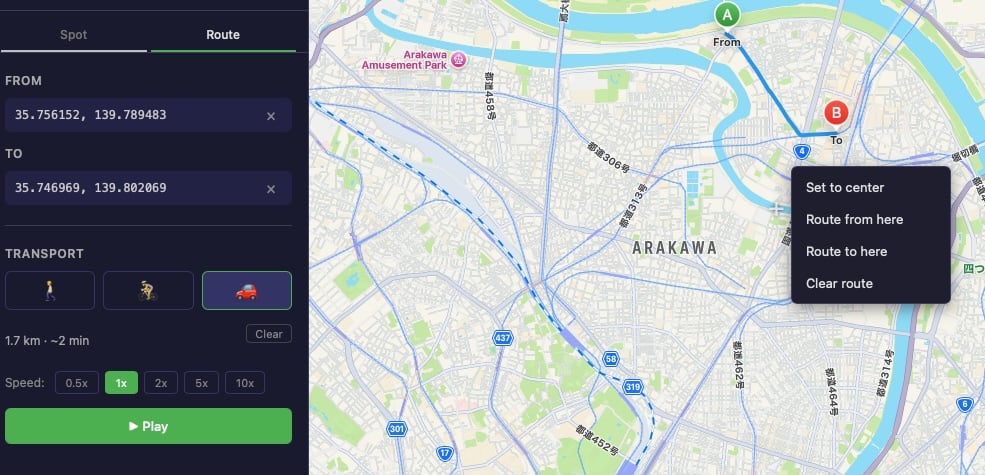
2. Configure Transport Mode and Speed
- TRANSPORT: Choose between walking 🚶, cycling 🚴, or driving 🚗 modes.
- Speed: Select simulation speed multiplier (0.5x, 1x, 2x, 5x, 10x).
3. Start Simulation
Click the Play button to begin the route simulation.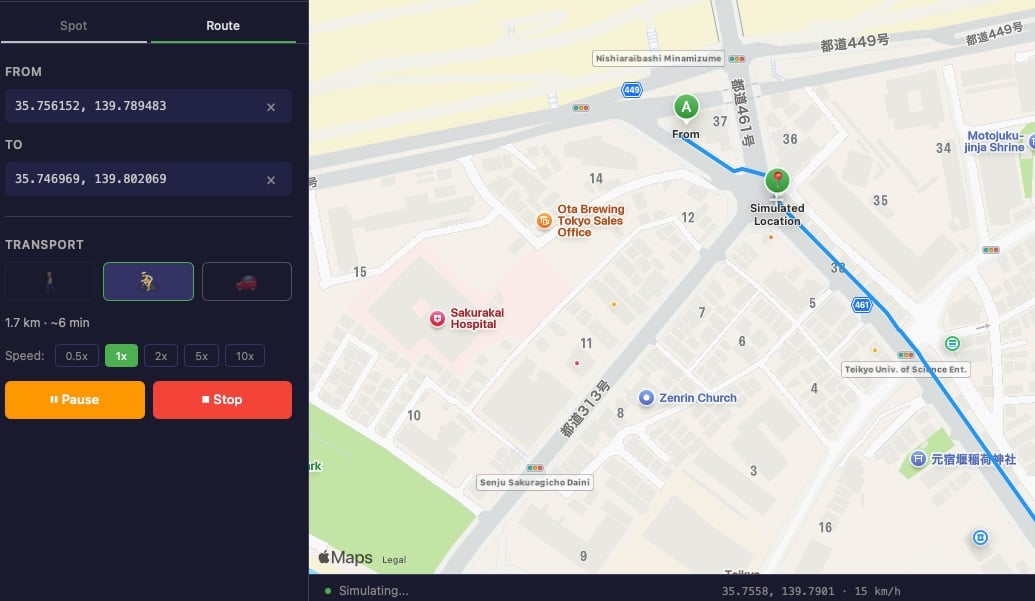
- The status bar shows Simulating… along with current coordinates and speed.
- A green marker shows your Simulated Location on the map.
- The estimated time remaining is displayed (e.g., “~6 min”).
4. Control Playback
- Click Pause to temporarily stop movement.
- Click Stop to end the simulation.
Stopping Simulation
To stop GPS simulation:- Click Stop if a route simulation is running.
- For spot simulation, the location remains until you set a new one or restart your device.
- To fully clear simulated location, restart your iOS device.