

Security Model
UPP uses a “First-Time Approval + Pre-Shared Key” security model that balances security with ease of use.Key Principles
- User Approval Required - New pilots need explicit user approval
- Key-Based Authentication - Known pilots authenticate with pre-shared keys
- Internal Network Only - Designed for local network deployment, not public internet
- Key Persistence - Keys are stored securely for future connections
Authentication Flow
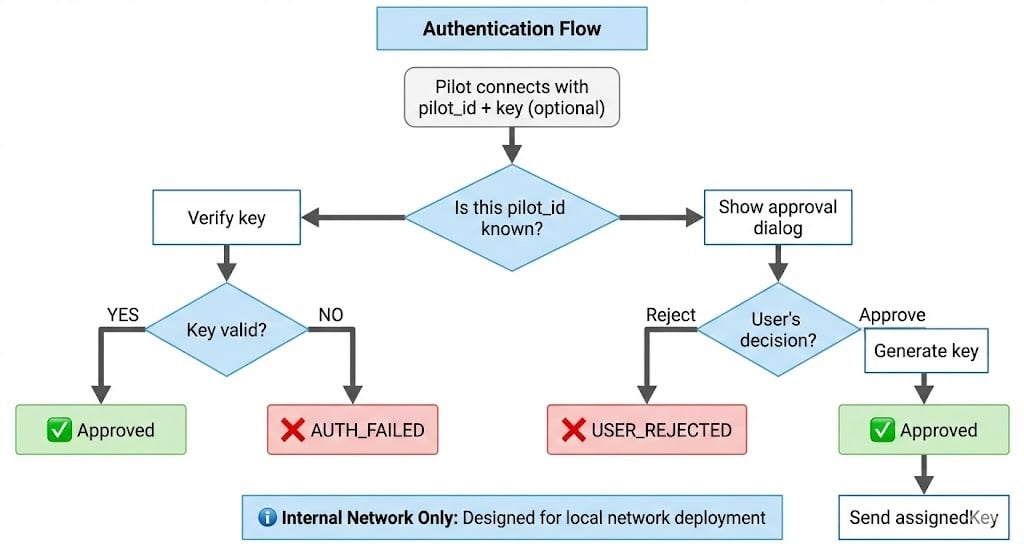
First-Time Connection
When a pilot connects for the first time (without a key):1. Pilot Sends Register
2. Qaptly Shows Approval Dialog
A dialog appears in Qaptly Desktop:3. User Decision
If User Approves:4. Pilot Stores Key
Subsequent Connections
For known pilots with valid keys:1. Pilot Sends Register With Key
2. Qaptly Verifies Key
Key is verified against stored hash. No user interaction needed.3. Automatic Approval
Pre-Shared Keys (Advanced)
For production deployments, you can pre-configure keys before the first connection.Use Cases
- Embedded devices: Deploy with pre-configured keys
- CI/CD pipelines: Automated test pilots
- Fleet management: Deploy multiple pilots at once
Implementation
1. Generate Key Manually
In Qaptly Desktop’s pilot extension config file, add:2. Deploy Key to Pilot Device
3. Pilot Connects
The pilot will be approved automatically without user interaction.Security Best Practices
1. Internal Network Only
UPP is designed for local network deployments: ✅ Correct:ws://<qaptly_desktop_ip>:18765/upp (local network IP like 192.168.1.100)
❌ Never: Expose to public internet or bind to public IP addresses
Security Guidelines:
- Deploy only on trusted internal networks
- Use firewall rules to restrict access if needed
- Consider VPN for remote pilot access
- Do not port-forward 18765 to the internet
2. Key Storage
Do NOT:- Commit keys to version control
- Share keys publicly
- Use same key for multiple pilots
- Store keys in plaintext in production
- Use environment variables or config files
- Set proper file permissions (chmod 600)
- Use different keys for development/production
- Rotate keys periodically (optional)
3. Pilot ID Uniqueness
Choose unique pilot IDs:4. Version Information
Always include accurate version numbers:Key Management
Key Generation
Qaptly generates keys using:- 256-bit random bytes
- Hex encoding
- Cryptographic random number generator
Key Storage
Keys are stored with:- SHA-256 hashing (not plaintext)
- Secure file permissions
- Backup mechanism
Key Rotation (Optional)
To rotate a key:- User: Revoke the old pilot in Qaptly Desktop
- Pilot: Connect without key (first-time flow)
- User: Approve and receive new key
- Pilot: Save and use new key
Error Codes
Authentication Errors
Handling AUTH_FAILED
Reconnection After Disconnect
If your pilot disconnects (network issue, restart, etc.):Within 5 Minutes
- Reconnect with same key
- Qaptly remembers your registration
- No user approval needed
- Event subscriptions are restored
After 5 Minutes
- Pilot is unregistered
- Must register again with key
- Same as “Subsequent Connections” flow
- May need user approval if key is invalid
Testing Authentication
Test 1: First-Time Connection
- “Waiting for user approval…”
- Dialog appears in Qaptly
- After approval: “Received assignedKey”
Test 2: Reconnection
- Immediate success
- No user interaction
Test 3: Invalid Key
- AUTH_FAILED error
- Pilot should handle gracefully
Example: Complete Auth Flow
Next Steps
Protocol Reference
Complete message specifications
Capabilities
Define capabilities with JSON Schema
Quick Start
Build your first pilot
Examples
Working implementations