

Overview
The Mobile Test Designer provides:- Live device streaming
- Visual step creation
- Element capture and analysis
- Step-by-step test case editing
- Environment variable support
Interface Layout
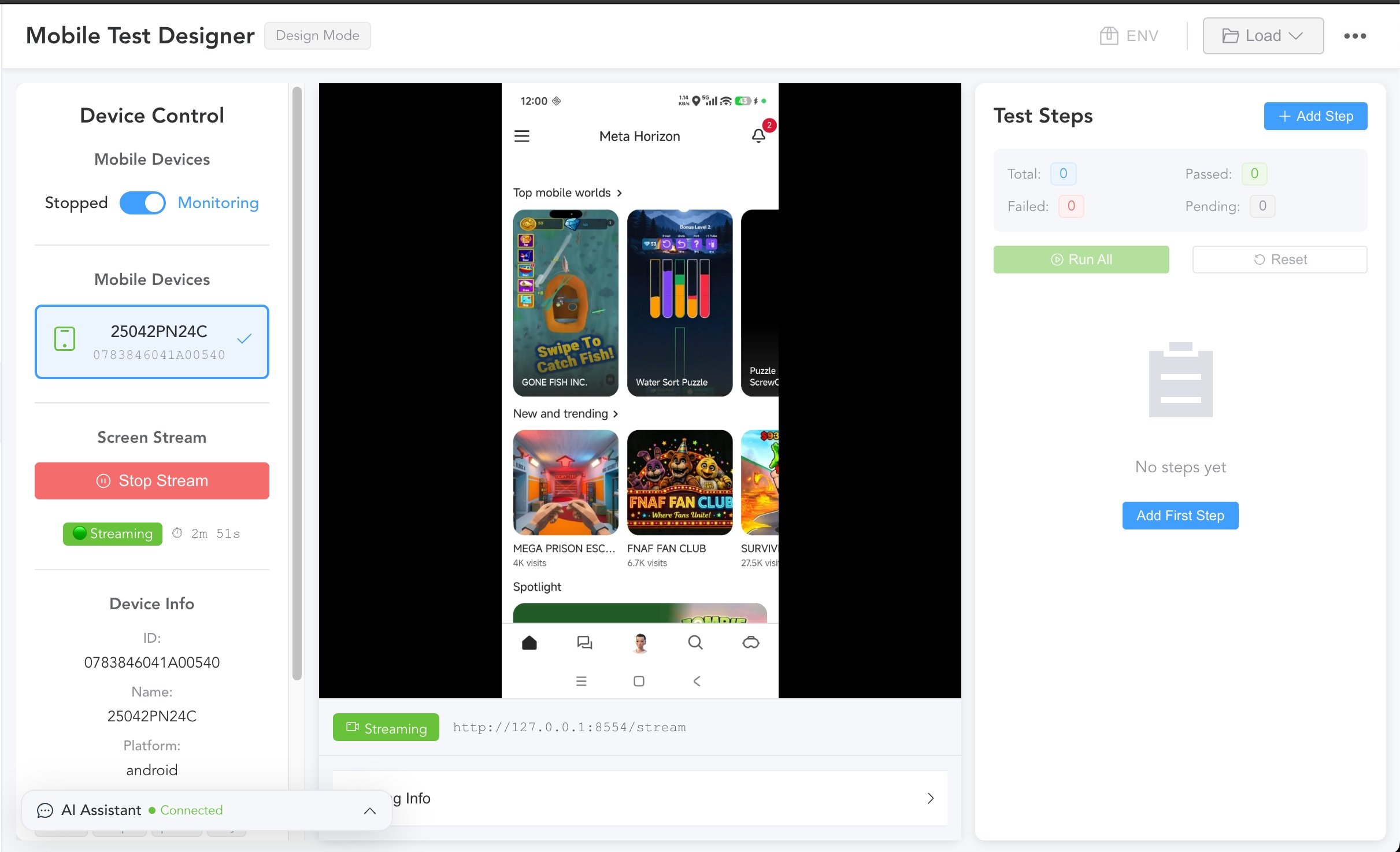
Header Controls
Test Case Information
- Test Case Name: Current test case being edited
- Edit Indicator (✏️): Shows if there are unsaved changes
Environment Selector
- Dropdown to switch between test environments
- Affects environment variables used in steps
Load Test Case
- Click Load
- Choose:
- Browse: Open test case browser
- Quick ID: Enter test case ID directly
Save Test Case
- Click Save
- Choose:
- Save: Update existing test case
- Save As New: Create a new test case
Clear All
Click Clear to remove all steps and start fresh.Left Panel: Device Control
Qaptly Service Toggle
- Enable/disable the Qaptly Mac Command service
- Required for device communication
Device Selection
- Android Devices: List of connected Android devices
- iOS Devices: List of connected iOS devices
- Select a device to stream and test
Streaming Control
- Start Stream: Begin live device mirroring
- Stop Stream: End streaming
Test Data Collection
For AI training and analysis:- Start Collection: Begin data collection
- Stop Collection: End collection
- Duration: Collection time elapsed
- Chunks: Audio chunks collected
Spec Collection
- Capture Spec: Capture current screen for specification
iOS Screenshot
- Update Screenshot: Manually refresh iOS screen capture
Center Panel: Step Editor
Platform Tabs
Switch between:- Mobile Platform: Mobile-specific steps
- Web Platform: Web action steps
Step Types
Click any step type to add and configure:
See Step Types Reference for detailed configuration options.
Step Configuration
After selecting a step type:- Configure parameters
- Use device stream to capture coordinates/elements
- Add description or expected result
- Save the step
Right Panel: Device Stream
Live Stream View
- Real-time device screen mirroring
- Click to capture coordinates
- Interactive element selection
Stream Controls
- Refresh: Update the stream
- Screenshot: Capture current screen
- Rotate: Rotate view (if supported)
Element Selection
When configuring Tap/Press steps:- Click on the stream to capture coordinates
- Coordinates are automatically filled in the step editor
Step Timeline
Viewing Steps
The bottom timeline shows all steps in order:- Each step displayed as a card
- Current step highlighted
- Drag to reorder (if supported)
Step Actions
- Click: Select step for editing
- Delete: Remove step
- Add (+): Add new step after
Step Status
Steps show their configuration status:- Complete: All required fields filled
- Incomplete: Missing required fields
Creating a Test Case
From Scratch
- Click Clear to start fresh
- Add App Launch step to open your app
- Add interaction steps (Tap, Swipe, Input)
- Add Verify steps at key points
- Add Close App if needed
- Click Save As New
From Existing
- Click Load and select a test case
- Modify existing steps
- Add or remove steps
- Click Save to update
Using the Device Stream
Capturing Coordinates
- Start streaming your device
- Navigate to the target screen
- In the step editor, click the coordinate capture mode
- Click on the stream where you want to tap
- Coordinates are automatically captured
UI Analysis
For more reliable element targeting:- Select Element Locator Mode in Tap/Press
- Use the stream to identify elements
- Choose a locator strategy (text, ID, etc.)
- Configure fallback coordinates
Environment Variables
Using Variables
In step parameters, insert environment variables:- Click the variable insertion button
- Select a variable
- Variable is inserted as
{{variable_name}}
Common Variables
{{app_package}}: Target app identifier{{username}}: Test user name{{password}}: Test user password
Tips
- Use locators over coordinates: More reliable across devices
- Add waits after navigation: Allow UI to settle
- Test incrementally: Run steps as you create them
- Use descriptive names: Make steps self-documenting
- Verify critical states: Add assertions at important points
Related: